
Complete Guide: How to Change Keyboard Language on Any Device
Master Keyboard Language Settings on Windows, Android, iOS, macOS, and create custom layouts with Automatic Keyboard Setup
Table of Contents
Why Changing Keyboard Language Matters
Changing your keyboard language layout is essential for anyone who types in multiple languages, uses special characters, or works across international environments. It's also crucial when using theBluetooth Keyboard & Mouse app to control devices like PCs, smart TVs, or tablets.
When you select a language layout inside the app, it determines which key codes are sent—not the actual characters. The connected device interprets those key codes based on its own keyboard layout. If the layouts don’t match (for example, if the app uses a French layout but the PC is set to English), keys like @, é, or ç may appear incorrectly. In this guide, we’ll show you exactly how to change the keyboard language in Bluetooth Keyboard & Mouse and on Windows, Android, iOS, and macOS—so you can ensure a seamless, accurate typing experience across all your devices.
How to change your Keyboard Language in Bluetooth Keyboard & Mouse
If you're using the Bluetooth Keyboard & Mouse app to type on a remote device, make sure the keyboard layout in the app matches the layout of the device you're controlling.
- Open Bluetooth Keyboard & Mouse on your Android device.
- Select one of the following features:
- Mouse / Keyboard
- PC Keyboard
- Custom Layout
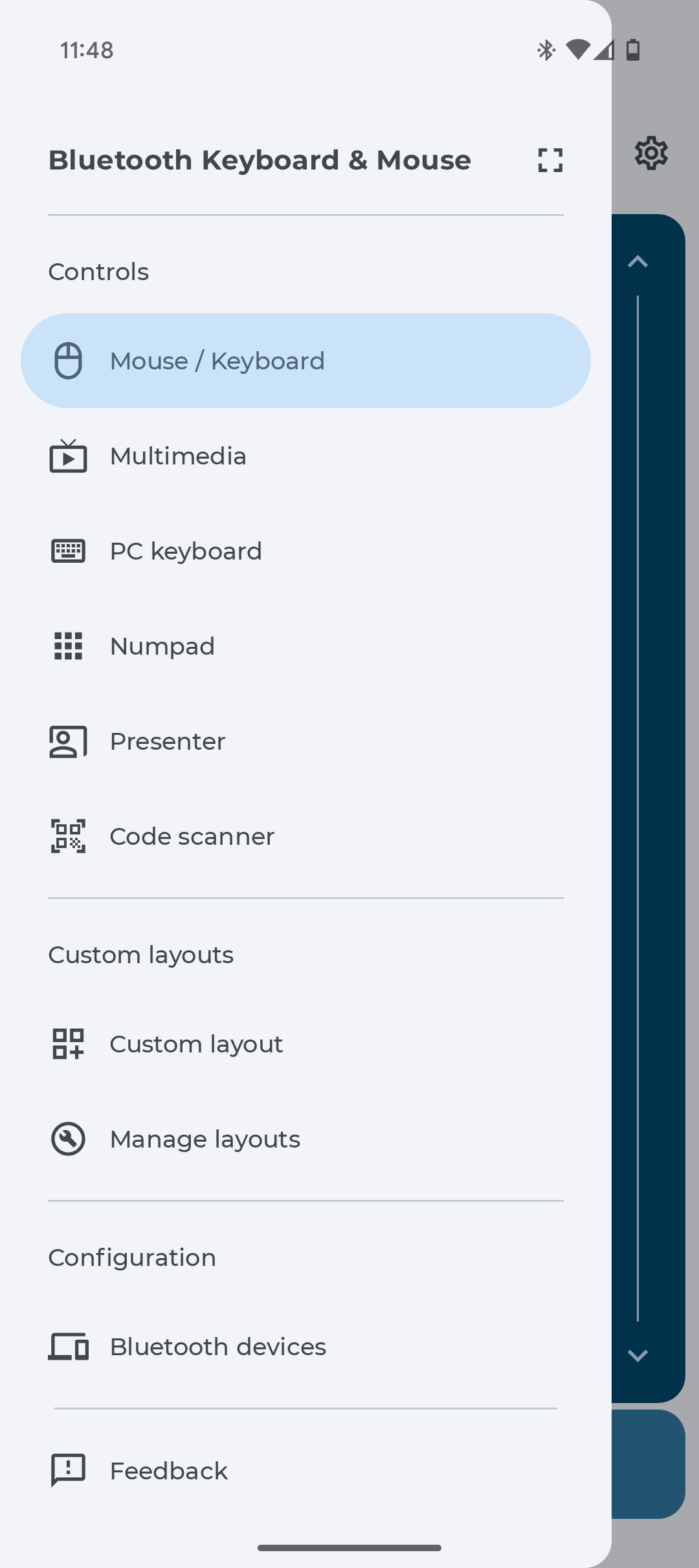
- Tap the keyboard icon located at the top right corner of the screen.
- Tap the globe icon located at the bottom right corner.
- Select your preferred keyboard language layout.
- For some languages, choose regional/dialect-specific layouts (e.g., US English).


Tip: Ensure the layout in the app matches the target device for accurate input.
Typing the wrong characters? Or can't find your language?
If your specific keyboard layout isn't listed in the app, or if pressing a key types the wrong character, you can use the Automatic Keyboard Setup. It lets you capture your physical keyboard's layout directly in your browser and import it into the app using a QR code.
How to Change your Keyboard Language (All Platforms)
Windows 10 & 11
Steps to add or switch keyboard languages:
- Press Windows + I to open Settings
- Go to Time & Language > Language
- Click on Keyboard
- Under Override for default input method open the dropdown menu
- Select a Language from the list.


Tip: Use Options > Add a keyboard to select a different layout per language.
Why Matching Keyboard Layouts is Important – Technical Details & Troubleshooting
When you press a key, you’re not actually sending a character like "A" or "Z"—you’re
sending a key code. The layout on the connected device interprets
that key code and decides what character to display.
So if the app uses a French layout but your PC is still set to English, you might press
é and see ; on the screen. Always ensure both devices are set to the same language layout
to avoid confusion.
Common Issue: If you see unexpected characters, check both the app and device are using the same layout.
Conclusion
Knowing how to change your keyboard language layout is essential
whether you're typing in multiple languages, using special characters, or
controlling devices remotely using the Bluetooth Keyboard & Mouse app.
By aligning the language layout in the app with the settings on your Windows PC, Mac,
Android device, or iPhone/iPad, you can avoid mismatched inputs and enjoy a smooth, accurate
typing experience.
Ready to get started? Download Bluetooth Keyboard & Mouse and explore its multilingual features today!
